 Back to Chrome setup
Set up LastPass
Install the LastPass Chrome extension in your Sapoto profile so it can sign in to your accounts automatically.
Open LastPass in the Chrome Web Store- 1
Install the extension
Open the LastPass Chrome extension and click Add to Chrome, then confirm with Add extension.Recommended — pin the LastPass extension so it's always one click away. Click the puzzle-piece icon in the Chrome toolbar, then click the pin next to LastPass.
- 2
Sign in to LastPass
Click the LastPass icon in the toolbar and sign in with your account email and master password. If you don't have an account, create one at lastpass.com. - 3
Open extension preferences
Click the LastPass icon, then Account Options → Extension Preferences. (Or pastechrome-extension://hdokiejnpimakedhajhdlcegeplioahd/preferences.htmlinto the address bar.) - 4
Enable autofill and verify
In preferences, check “Automatically fill login information” and “Show fill options automatically”. Then visit any login page and confirm that LastPass offers to fill your credentials.
Bonus — for even smoother runs, enable Log in automatically on each saved entry so LastPass submits the form instead of just filling it.
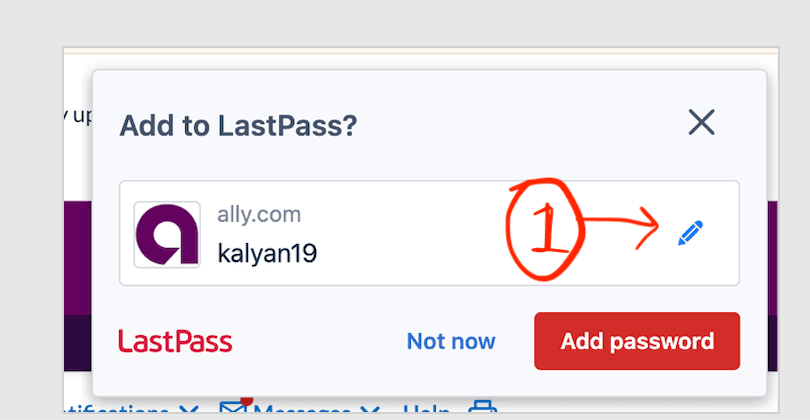
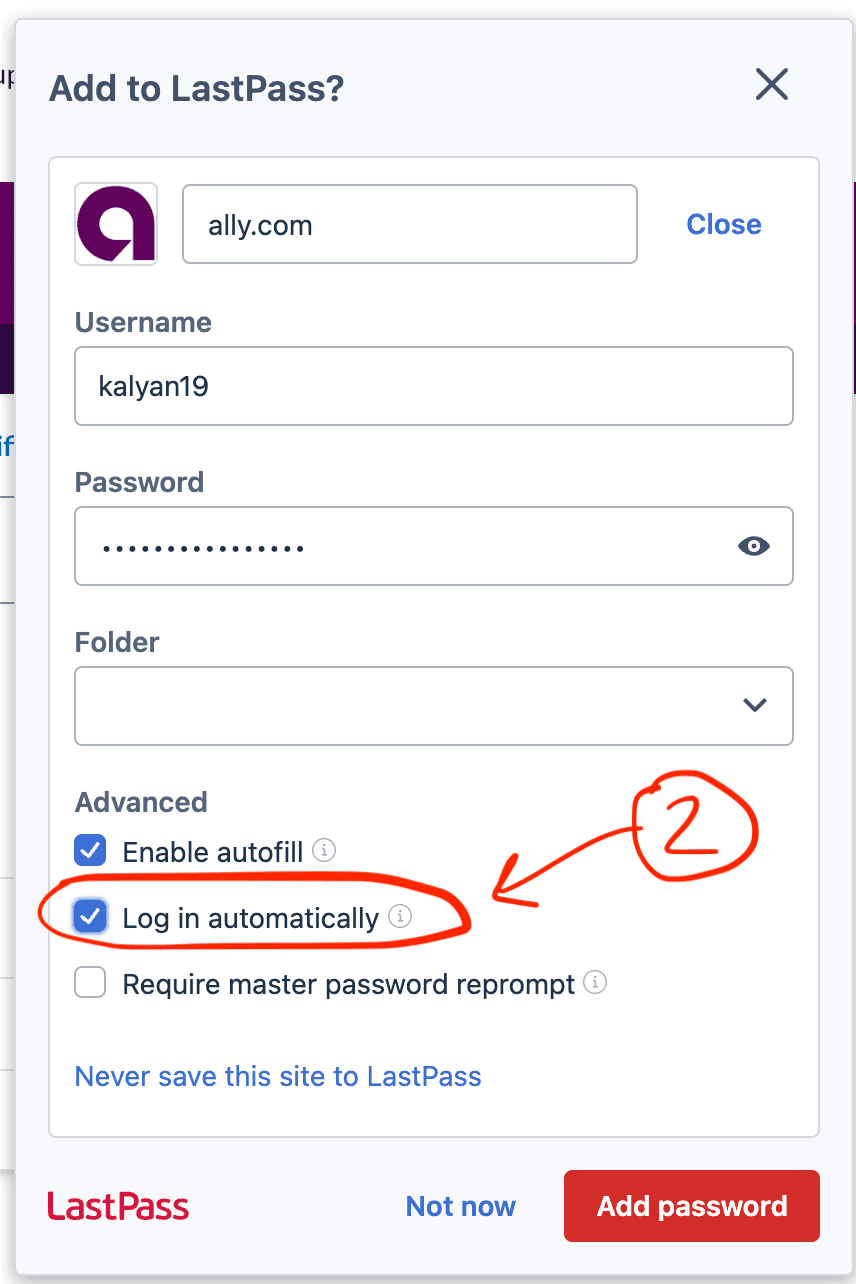
When saving a new credential: in the Add to LastPass? prompt, click the pencil icon to expand it, then check Log in automatically under Advanced before clicking Add password.
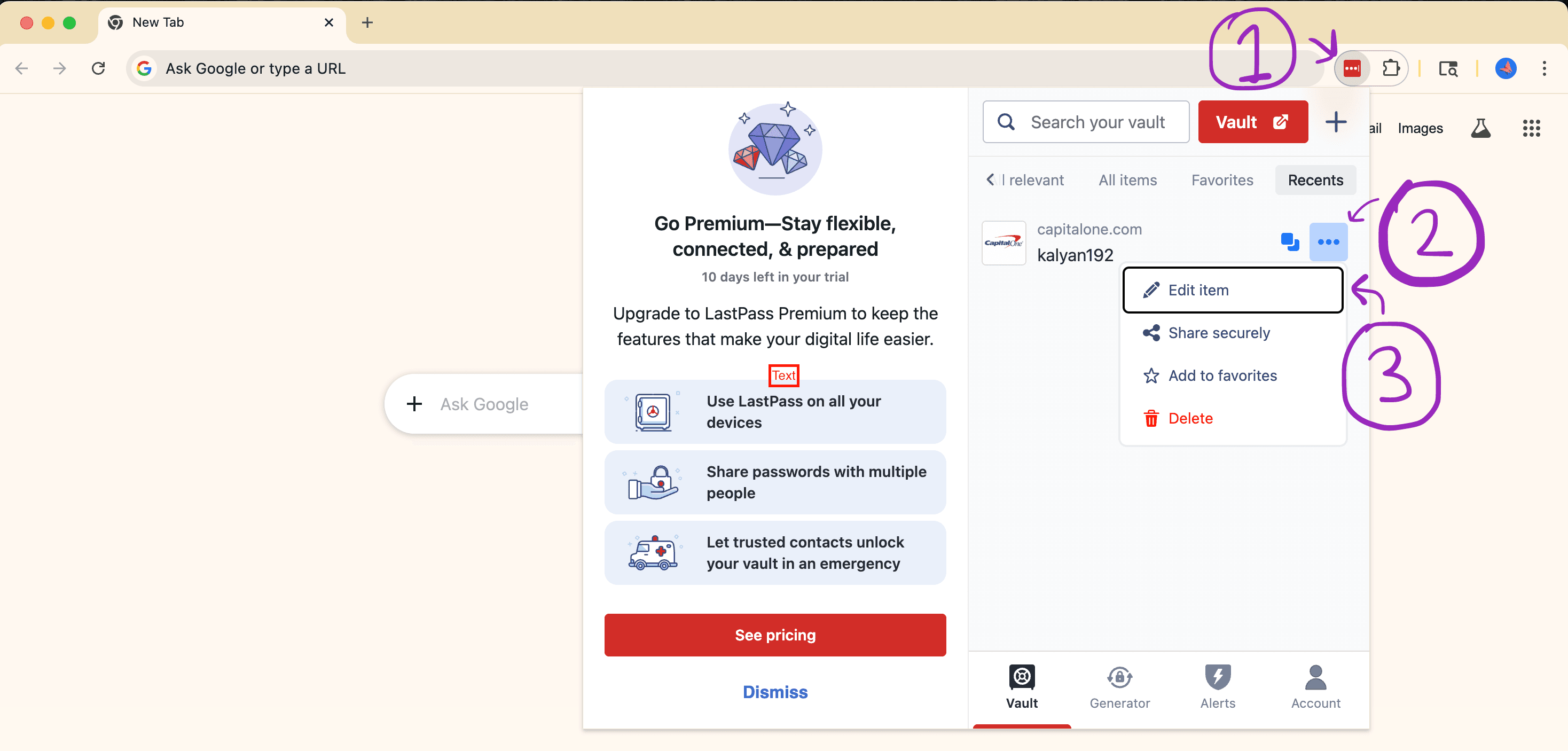
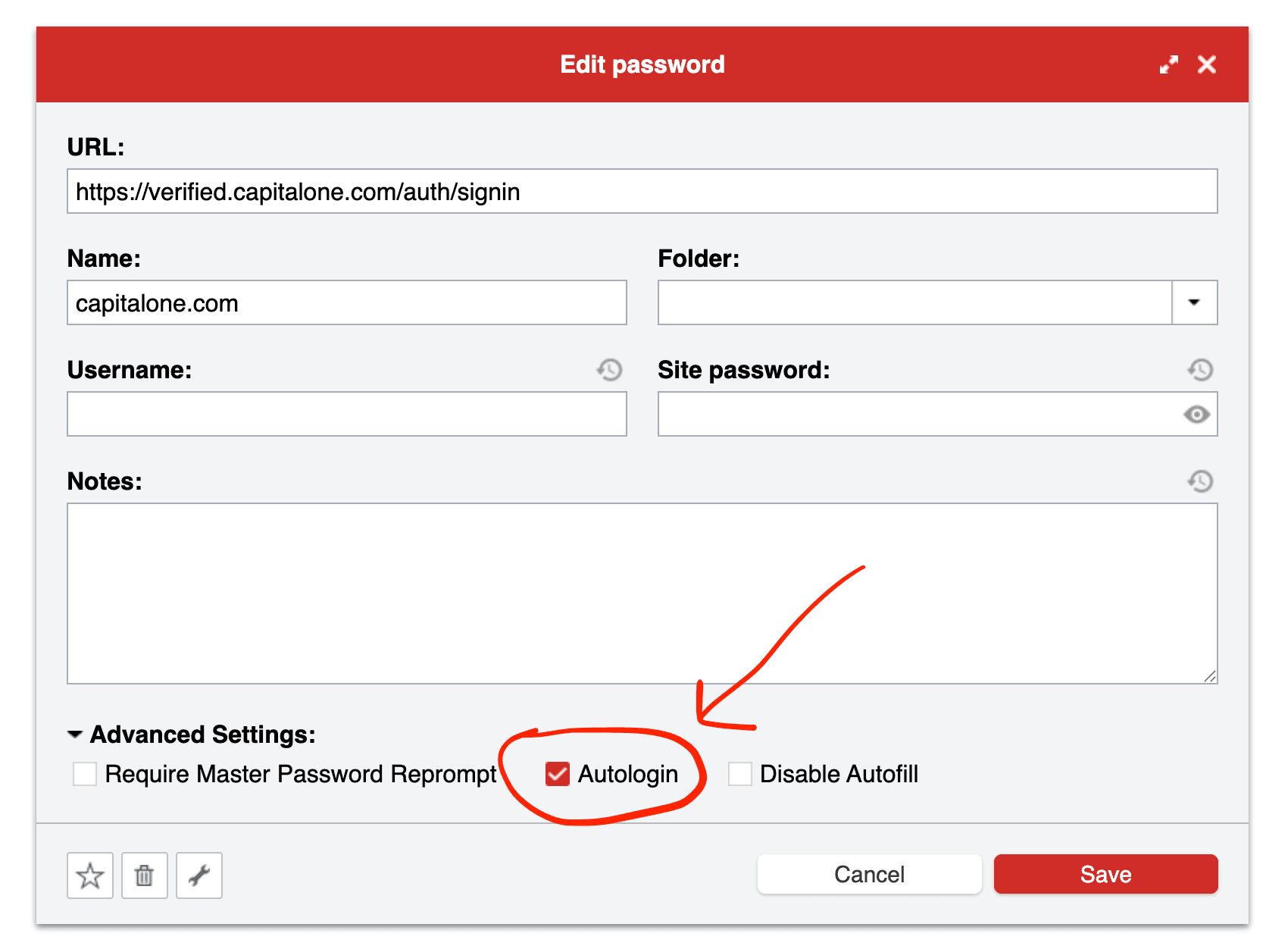
For entries already in your vault: click the ⋯ menu → Edit item on the entry, expand Advanced Settings, and check Autologin.
Done? You can close this window and head back to the Sapoto app to continue.